# What Is Tradingview ?

{% hint style="success" %} <mark style="color:purple;">Simply Algos indicators work with</mark> <mark style="color:purple;"></mark><mark style="color:purple;">**all types of TradingView accounts — including the FREE plan.**</mark>&#x20;

<h4 align="center"><mark style="color:purple;">No separate purchase is required.</mark></h4>
{% endhint %}

<figure><img src="https://nexalgo.gitbook.io/nexalgo-docs/~gitbook/image?url=https%3A%2F%2F2297224862-files.gitbook.io%2F%7E%2Ffiles%2Fv0%2Fb%2Fgitbook-x-prod.appspot.com%2Fo%2Fspaces%252Fyxg4kQfF3sD6twPTUQvs%252Fuploads%252FdMsm5wM8UT1Gf7x0t99u%252FScreenshot%25202025-06-17%2520154027.png%3Falt%3Dmedia%26token%3D998caa75-5e2e-4dc6-8307-ae8e0c0398ca&#x26;width=768&#x26;dpr=4&#x26;quality=100&#x26;sign=a11a202e&#x26;sv=2" alt=""><figcaption></figcaption></figure>

TradingView is one of the world’s most popular charting platforms — trusted by traders across crypto, forex, stocks, options, and indices. It runs directly in your browser and offers advanced tools without needing to install anything.

## Why We Use TradingView <a href="#why-we-use-tradingview" id="why-we-use-tradingview"></a>

Simply Algos indicators are built specifically for TradingView because it gives traders:

* Real-time price charts
* Custom indicators & strategies
* Easy access via browser or mobile app
* Pine Script — the language behind smart tools

It’s fast, clean, and beginner-friendly — perfect for using Nexalgo tools with zero hassle.

## How To Create A Trading View Account <a href="#create-a-tradingview-account" id="create-a-tradingview-account"></a>

<figure><img src="https://nexalgo.gitbook.io/nexalgo-docs/~gitbook/image?url=https%3A%2F%2F2297224862-files.gitbook.io%2F%7E%2Ffiles%2Fv0%2Fb%2Fgitbook-x-prod.appspot.com%2Fo%2Fspaces%252Fyxg4kQfF3sD6twPTUQvs%252Fuploads%252F0u0qUc9ijbvXZ64GRXkX%252FScreenshot%25202025-06-17%2520154545.png%3Falt%3Dmedia%26token%3D2f653d4c-1aa9-4329-95ab-f866d0c4ea48&#x26;width=768&#x26;dpr=4&#x26;quality=100&#x26;sign=1400b548&#x26;sv=2" alt=""><figcaption></figcaption></figure>

<figure><img src="https://nexalgo.gitbook.io/nexalgo-docs/~gitbook/image?url=https%3A%2F%2F2297224862-files.gitbook.io%2F%7E%2Ffiles%2Fv0%2Fb%2Fgitbook-x-prod.appspot.com%2Fo%2Fspaces%252Fyxg4kQfF3sD6twPTUQvs%252Fuploads%252Fp3lfj0m7crpR6acJEgqL%252FScreenshot%25202025-06-17%2520154514.png%3Falt%3Dmedia%26token%3De76525cf-4956-4e83-9b08-a58a9ca918b9&#x26;width=768&#x26;dpr=4&#x26;quality=100&#x26;sign=f889d7bb&#x26;sv=2" alt=""><figcaption></figcaption></figure>

Go to [tradingview.com](https://tradingview.com/) and click **“Sign Up”** in the top-right corner.

You can register with:

* Email
* Google
* Apple
* Or your preferred social account

![](https://nexalgo.gitbook.io/nexalgo-docs/~gitbook/image?url=https%3A%2F%2F2297224862-files.gitbook.io%2F%7E%2Ffiles%2Fv0%2Fb%2Fgitbook-x-prod.appspot.com%2Fo%2Fspaces%252Fyxg4kQfF3sD6twPTUQvs%252Fuploads%252FekvC8FIoRivb2e4GMi27%252FScreenshot%25202025-06-17%2520154609.png%3Falt%3Dmedia%26token%3D1fbeed3a-db63-4ed1-81ae-bc558c9c17e4\&width=768\&dpr=4\&quality=100\&sign=cc08595f\&sv=2)

## How To View Charts on Trading view <a href="#tradingview-charts" id="tradingview-charts"></a>

Once logged in, click **"Chart"** at the top of the screen.

You’ll be taken to the TradingView charting interface.

<figure><img src="https://nexalgo.gitbook.io/nexalgo-docs/~gitbook/image?url=https%3A%2F%2F2297224862-files.gitbook.io%2F%7E%2Ffiles%2Fv0%2Fb%2Fgitbook-x-prod.appspot.com%2Fo%2Fspaces%252Fyxg4kQfF3sD6twPTUQvs%252Fuploads%252F6zzrT7jroV6ETN6uhp2g%252FScreenshot%25202025-06-17%2520154901.png%3Falt%3Dmedia%26token%3D7b539205-4b83-4e25-83dd-590e0b455173&#x26;width=768&#x26;dpr=4&#x26;quality=100&#x26;sign=d02a73b&#x26;sv=2" alt=""><figcaption></figcaption></figure>

## How to Change the Symbol (Asset) <a href="#how-to-change-the-symbol-asset" id="how-to-change-the-symbol-asset"></a>

<figure><img src="https://nexalgo.gitbook.io/nexalgo-docs/~gitbook/image?url=https%3A%2F%2F2297224862-files.gitbook.io%2F%7E%2Ffiles%2Fv0%2Fb%2Fgitbook-x-prod.appspot.com%2Fo%2Fspaces%252Fyxg4kQfF3sD6twPTUQvs%252Fuploads%252FRtnWKb0u0CXfH5FOL1nC%252FScreenshot%25202025-06-17%2520155929.png%3Falt%3Dmedia%26token%3Ded7dca6a-45a9-4985-be13-23710399dec4&#x26;width=768&#x26;dpr=4&#x26;quality=100&#x26;sign=5816bda1&#x26;sv=2" alt=""><figcaption></figcaption></figure>

To switch between assets like BTC/USD, NASDAQ, BSE, NIFTY, Gold, or INR/USD:

* Click in the **top-left search bar**
* Type the asset or symbol (e.g. `BTCUSD`, `WIPRO`, `NIFTY50`)
* Select it from the list

![](https://nexalgo.gitbook.io/nexalgo-docs/~gitbook/image?url=https%3A%2F%2F2297224862-files.gitbook.io%2F%7E%2Ffiles%2Fv0%2Fb%2Fgitbook-x-prod.appspot.com%2Fo%2Fspaces%252Fyxg4kQfF3sD6twPTUQvs%252Fuploads%252FVSPxadKYOTiUeySuPnIa%252FScreenshot%25202025-06-17%2520160024.png%3Falt%3Dmedia%26token%3D9ced9d35-8526-4f7b-91ac-36be7f042932\&width=768\&dpr=4\&quality=100\&sign=514bfa1e\&sv=2)

## How to Change Timeframe <a href="#how-to-change-timeframe" id="how-to-change-timeframe"></a>

<figure><img src="https://nexalgo.gitbook.io/nexalgo-docs/~gitbook/image?url=https%3A%2F%2F2297224862-files.gitbook.io%2F%7E%2Ffiles%2Fv0%2Fb%2Fgitbook-x-prod.appspot.com%2Fo%2Fspaces%252Fyxg4kQfF3sD6twPTUQvs%252Fuploads%252F1K6MkSJeCNGPoVSwoR5w%252FScreenshot%25202025-06-17%2520160316.png%3Falt%3Dmedia%26token%3D5d7ea016-eb98-4f92-8b7a-5a5526f8e139&#x26;width=768&#x26;dpr=4&#x26;quality=100&#x26;sign=bb4f2722&#x26;sv=2" alt=""><figcaption></figcaption></figure>

To switch timeframes:

* Use the **time interval menu** at the top (next to the symbol)
* Choose from 1m, 5m, 1H, 4H, 1D, etc.

Tip: Right-click to customize favorite timeframes for quicker access.

## How To Add Indicators <a href="#add-indicators" id="add-indicators"></a>

<figure><img src="https://nexalgo.gitbook.io/nexalgo-docs/~gitbook/image?url=https%3A%2F%2F2297224862-files.gitbook.io%2F%7E%2Ffiles%2Fv0%2Fb%2Fgitbook-x-prod.appspot.com%2Fo%2Fspaces%252Fyxg4kQfF3sD6twPTUQvs%252Fuploads%252FnwtxmST7i95vUrTyIssH%252FScreenshot%25202025-06-17%2520160726.png%3Falt%3Dmedia%26token%3D5d37ab8d-a68e-4a9f-9d75-119fe1b7c4c9&#x26;width=768&#x26;dpr=4&#x26;quality=100&#x26;sign=61731b03&#x26;sv=2" alt=""><figcaption></figcaption></figure>

To add any indicator:

* Click **“Indicators”** at the top of the chart
* Use the search bar to find any public or custom indicator
* Click the indicator name to apply it to your chart

<figure><img src="https://nexalgo.gitbook.io/nexalgo-docs/~gitbook/image?url=https%3A%2F%2F2297224862-files.gitbook.io%2F%7E%2Ffiles%2Fv0%2Fb%2Fgitbook-x-prod.appspot.com%2Fo%2Fspaces%252Fyxg4kQfF3sD6twPTUQvs%252Fuploads%252F2g6oXiit5qDTGu1ggpVS%252FScreenshot%25202025-06-17%2520160630.png%3Falt%3Dmedia%26token%3D3403e911-afb8-4b19-bfc8-ec0f7985b4c8&#x26;width=768&#x26;dpr=4&#x26;quality=100&#x26;sign=90e0f447&#x26;sv=2" alt=""><figcaption></figcaption></figure>

## How To Save A Chart Layout <a href="#save-a-chart-layout" id="save-a-chart-layout"></a>

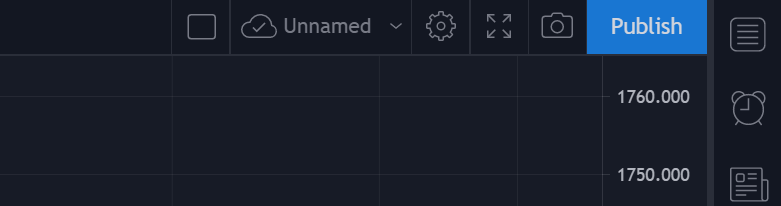
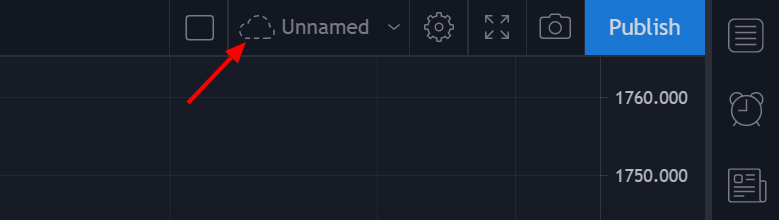
You can create, delete and save chart layouts on TradingView if you wish to save your indicator & chart settings on specific tickers/timeframes. Once you make a change on a layout, you will need to save these changes, all you need to do is to click on the cloud symbol at the top right of the chart.

<figure><img src="https://mintlify.s3.us-west-1.amazonaws.com/luxalgo/public/images/tradingview/image225.png" alt=""><figcaption></figcaption></figure>

<figure><img src="https://mintlify.s3.us-west-1.amazonaws.com/luxalgo/public/images/tradingview/image356.png" alt=""><figcaption></figcaption></figure>